Adjust Audio/Video Speed & Pitch Without Artifacts in Browser
The music in a video clip is often well-produced, but sometimes you might wish its tempo were different. Occasionally, you may also feel that the performer could sound better with a different vocal tone.
This can be adjusted programmatically by playing the audio or video slower or faster. To achieve this, the data needs to be resampled—for example, turning 2 data points into 4. The resulting distortions are nearly imperceptible. You’ll only notice the slowing down and lowering of pitch, or the speeding up and raising of pitch. This technology is quite simple to implement, produces almost no artifacts, works quickly, and is available directly in the browser.
It’s worth noting that there are no pitch-shifting algorithms completely free of artifacts. So, if you want to lower the pitch and are satisfied with the slower tempo, it’s better to use simple resampling as suggested here.
Browsers natively support changing playback speed for both video and audio, but by default, they adjust the speed while preserving the pitch, which essentially means pitch-shifting after resampling. As mentioned earlier, there’s no way to shift pitch without artifacts. In Chrome’s implementation, you may hear chirping-like artifacts.
To avoid audible artifacts, you’ll need to abandon pitch preservation, and for that, you can use the Page context extension.
Using Page context Extension for Playback Control
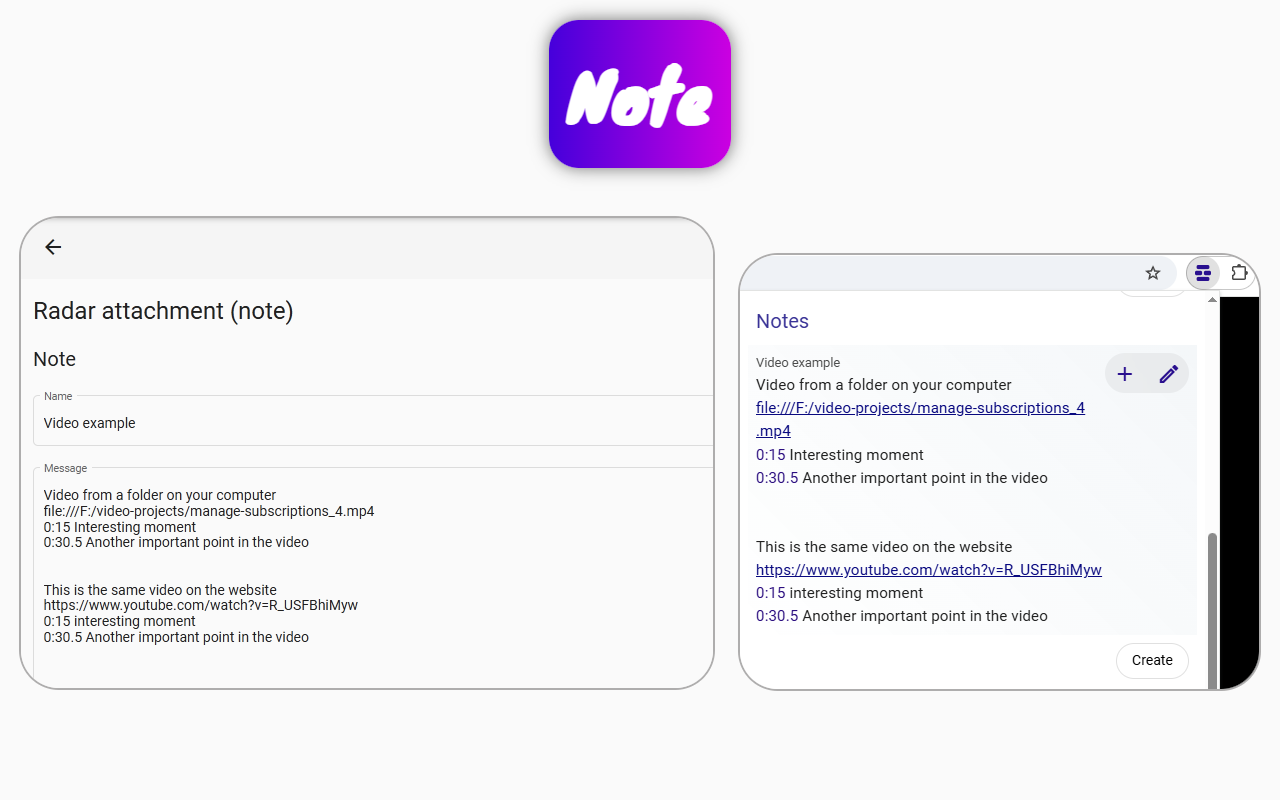
In the Page context extension, you can create entire playlists from clips on different pages and local files, even selecting from multiple audio or video elements on a single page. To do this:
- Create a note by clicking the button in the extension’s pop-up near the address bar.
- Use the three buttons: Add Playlist, Add URL, and Add Time Range.
- In the time range, you can specify that the playback speed should differ from 1 and that pitch preservation is not required.
That’s it—you now have a clip that will play without chirping artifacts, with the desired tempo or pitch.
Managing Playlists and Time Ranges
- The playlist’s text label turns into a playlist launch button.
- The links under the playlist indicate where the time ranges (or clips) should be played.
- You can add time ranges under links or directly under the playlist without links.
- If added directly under the playlist, you’ll need to navigate to the link manually without the extension’s help.
- You can also omit the playlist button entirely, as time ranges will work independently—just click on them.
After creating a note, you’ll see it on the site where you created it from the extension’s pop-up. With two clicks, you can start the playlist.
Making Notes Accessible (Radar Feature)
To make notes accessible from other locations, such as those specified in the playlist:
- Click the back arrow in the note editor to enter the Radar.
- In the Radar, add a link to the rules so the note becomes available from the desired page.
Playlist Activation
The playlist activates a task when clicked or when any selected range under it is triggered. You can choose a specific range or let all ranges play automatically.
This way, using the Page context extension, you can create entire playlists with customized audio or video characteristics. Since you can use different links, a single playlist can include clips from various websites.