Create Perfect YouTube Timestamps in Real-Time
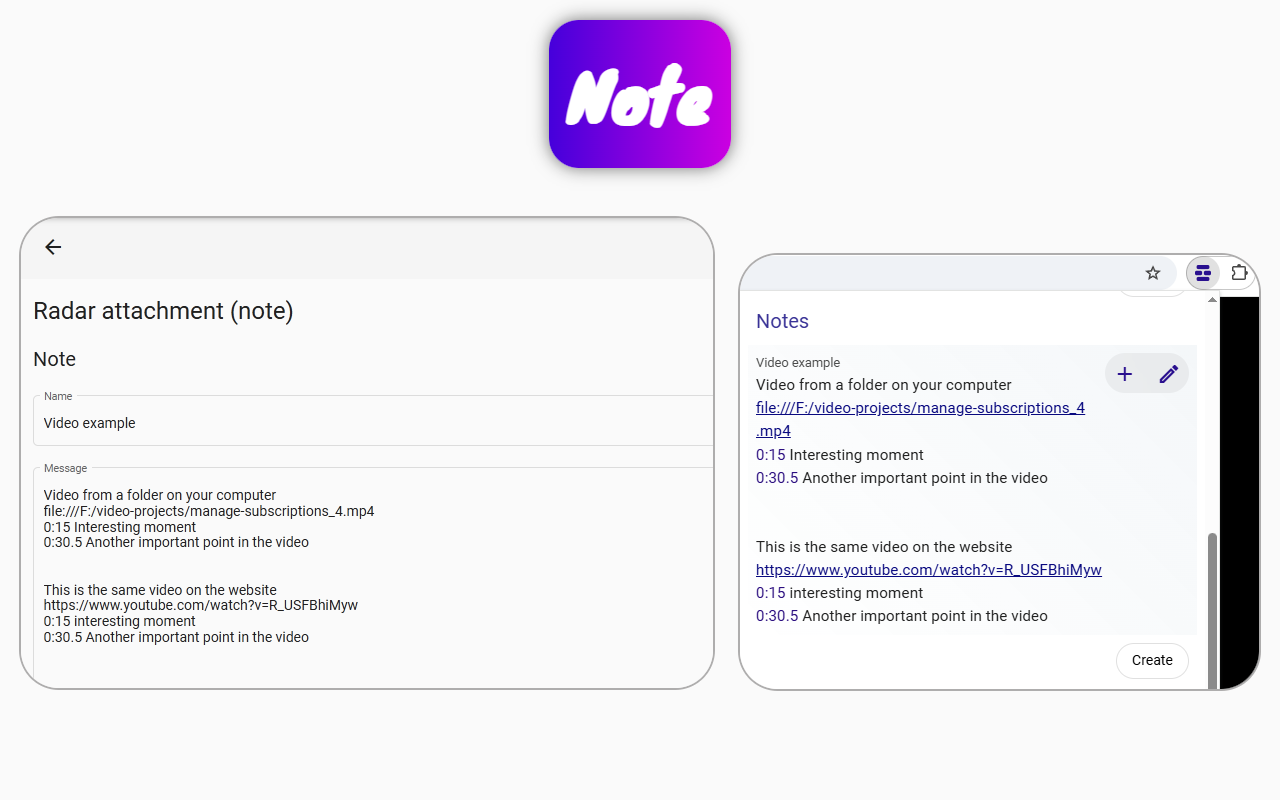
YouTube allows adding timestamps to videos, but without practice, it's easy to misjudge the timing.
YouTube accepts files in the mp4 format, which can be played directly on your computer using the Chrome browser. Simply drag and drop the file into the browser, and you'll see it open locally. Now you can watch and rewind it, but most importantly, you can use browser extensions.
Using the Page context extension, you can add timestamps to notes on the fly, seeing them appear in real-time. Afterward, you can quickly test how these timestamps work on any local video.
The convenience of the extension lies in its ability to open a separate preview window for the note with timestamps. This means you can place it on another monitor, split Chrome tabs, or arrange the windows side by side.
The extension window is linked to the window containing the video, so you don't encounter the difficulties present in YouTube itself. On YouTube, to check a timestamp, you would have to click on it, which then shifts focus to the video, moving the screen from the comments section to the player. Using Page context, you avoid these issues. When clicking a timestamp in the extension, nothing extraneous happens to the video—only the current time changes. On YouTube, a paused video would inevitably start playing.
In YouTube, after every timestamp edit, you would have to save the changes to test them. Using the extension, you don't need to save anything to test.
How to create timestamps with Page context:
- Create a note and write your timestamps in it.
- A preview of the note will appear below.
- Click on these timestamps to see where they lead.
- If they don't go where you want, correct them—they will be updated on the fly.
- Use the resulting text for your video description so that YouTube recognizes the timestamps.
The Page context extension streamlines this entire process, making real-time timestamp creation and testing efficient and seamless.