How to Create Media Quote Clips with Page Context Extension
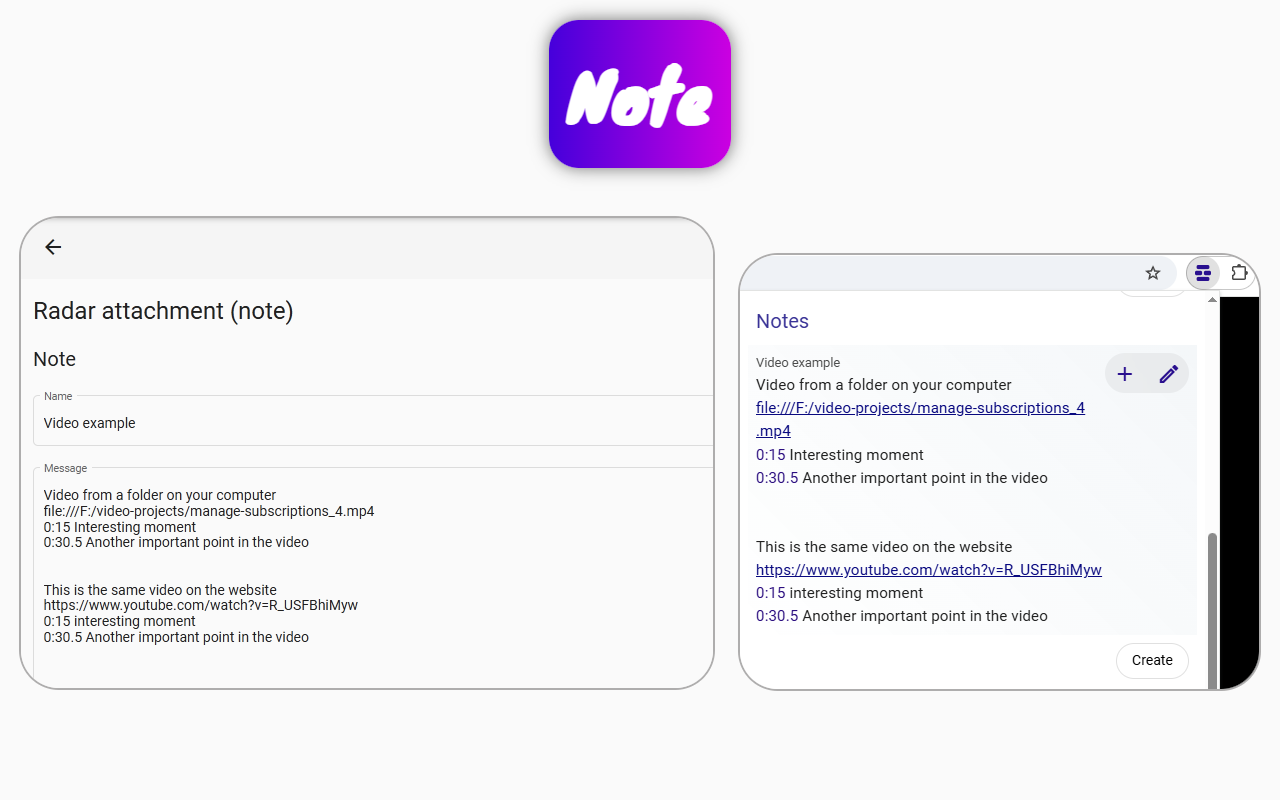
Page context extension transforms how you work with audio and video. Important pieces of information are often recorded as text, but sometimes it's more important to know how speech or video sounds. For such cases, you can mark time ranges on video or audio like clips and collect such ranges in a media quote book. This can be done using the Page context browser extension.
Page context allows you to create time segments simply by writing them as text, which turns into buttons to play the desired video or audio quote. The data is stored locally, only for you. With one button, you can play the entire list of all collected quotes. You can create a list of such quotes using the add playlist button; this playlist can work with different links and local files that can be played in the browser.
Imagine you've written a summary, and next to the quotes, there's a button where you can hear the experts' words. Then you copy this text wherever you want, and later create another text based on it, and it works with all video and audio elements.
To do this with Page context extension, you need to:
- Find your video or audio fragment.
- In the Page context extension popup (near the browser's address bar), click the Create button in the Notes section.
- In the window that opens, click the Add Playlist, Add Url, and Add Time range buttons.
- Click on the text with this range in the editor to bring up the range editor properties.
- The editor allows you to shift the range forward and backward so you can precisely select the desired interval. You can do this with millisecond steps or larger.
- Click the save button, and you're done. Now, on the page with your video or audio, you can see a note in the extension popup that contains buttons to play the time interval you created.
For this note to be accessible from other pages, you need to go to the Radar from the note editor. The Radar is responsible for the rules by which the note will appear in the page's popup.
In the rules section, you need to specify the text for the link. You can use part of the link to capture more pages with this rule. After selecting the desired part of the link, click Save, and you're done. Now the note is available from multiple pages specified in the template.
The range editor in Page context allows you to do some interesting things; for example, you can repeat the range infinitely or with a specified number of repetitions. The playback speed can be slowed down or sped up, with or without preserving pitch. The volume can also be set to your preference or turned off completely.
The total length of the entire playlist is automatically calculated and displayed by the extension.