Remove Distracting Website Elements with Page Context
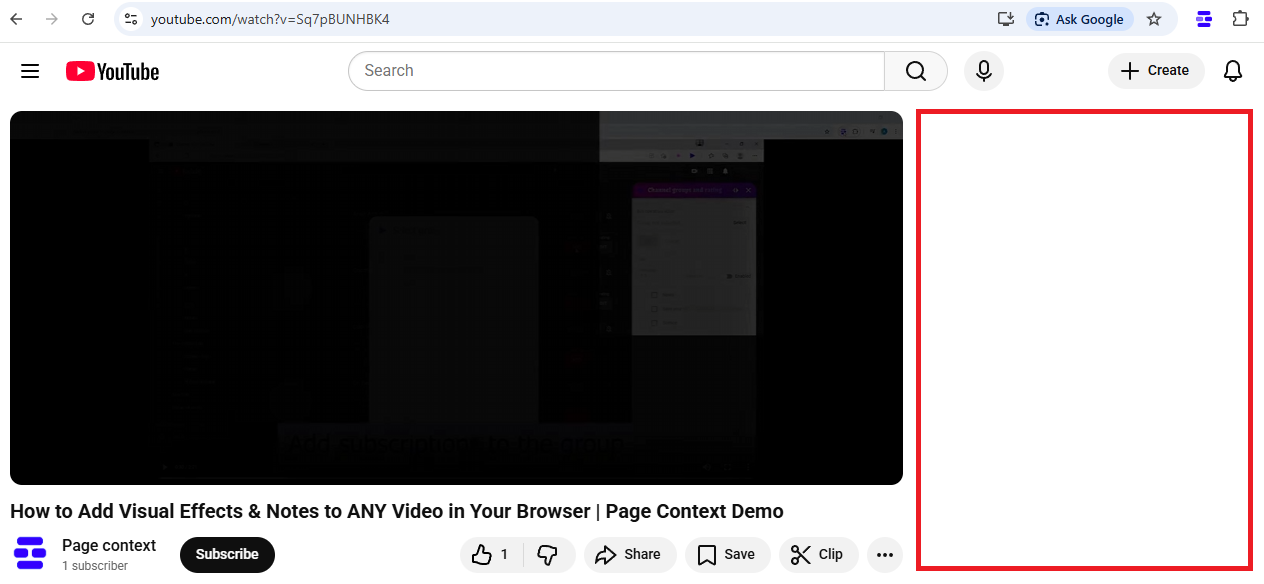
Websites are full of distracting elements. For example, on YouTube, there's a list of images to the right of a video. This is likely useless information that wastes your time.
Using the Page context extension, you can hide such elements. For example, to hide distracting images to the right of a video, you can create a visual effect that makes these elements transparent.
Creating a Visual Effect with Page context
To do this, create a visual effect using the button in the Page context extension popup. Enter the selector #secondary.ytd-watch-flexy or #secondary.ytd-watch-flexy:not(:hover) (the selector is valid as of December 26, 2025) to display on hover.
Next, find the Opacity slider at the bottom of the page and reduce the opacity to zero or any other value. This will make the elements transparent on this page. However, to ensure this works across all of YouTube, go to the radar using the arrow at the top of the page and change the rule link to utube.com. Now you won't see these images for all YouTube video pages.
Targeting Multiple Elements
To change the opacity of the Share and Like buttons, you can use the selector: #secondary.ytd-watch-flexy, #top-level-buttons-computed or #secondary.ytd-watch-flexy:not(:hover), #top-level-buttons-computed:not(:hover) (the selector is valid as of December 26, 2025) to display on hover. You can see that the selector #top-level-buttons-computed has been added, separated by commas.
To change the opacity of the sponsorship button, you can use the selector #secondary.ytd-watch-flexy, #top-level-buttons-computed, #sponsor-button or #secondary.ytd-watch-flexy:not(:hover), #top-level-buttons-computed:not(:hover), #sponsor-button:not(:hover) (the selector is current as of 2025-12-26) for display on hover and on the page.
Finding Selectors Yourself
How to find the selector yourself: click on the element in the Chrome browser, open the context menu, and then select Inspect. If you know CSS, you can choose a selector for many elements.
This approach to changing the visual effects of an element using the Page context extension can be applied to many websites and local web pages.